The spacebar is the one key on your keyboard that doesn't go on like the others. It has an extra metal stabilizer bar — a thin wire that runs across the bottom of the key and keeps it level when you press either end. Install it the wrong way and the bar pops free, the key cocks sideways, and you're stuck. Here's how to do it right.
Identify the stabilizer bar
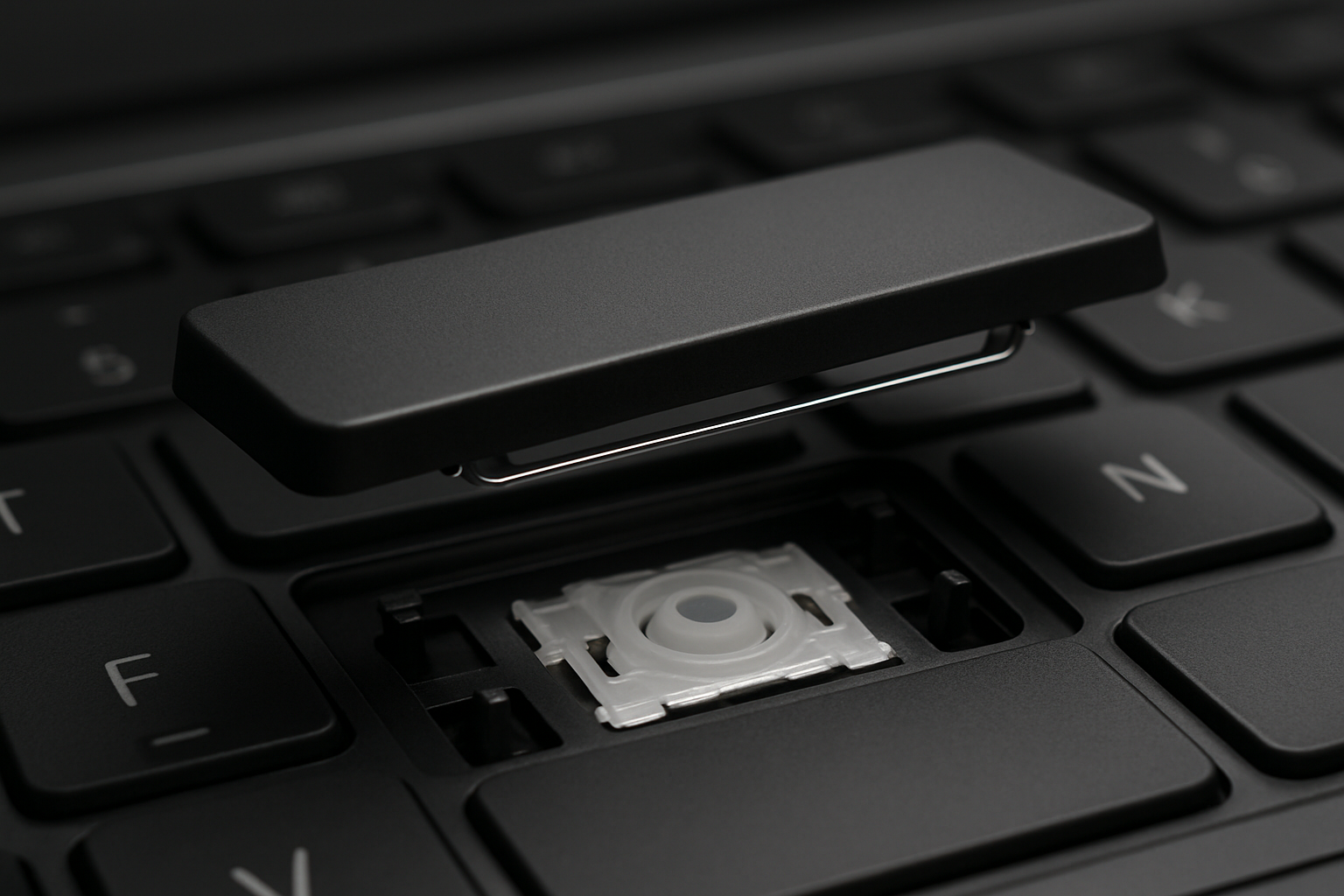
Flip the spacebar over and you'll see a thin metal rod (about 0.8mm thick) running from the left edge to the right edge across the underside. Each end of the bar bends into a small hook. The bar lives in a little plastic channel molded into the spacebar.
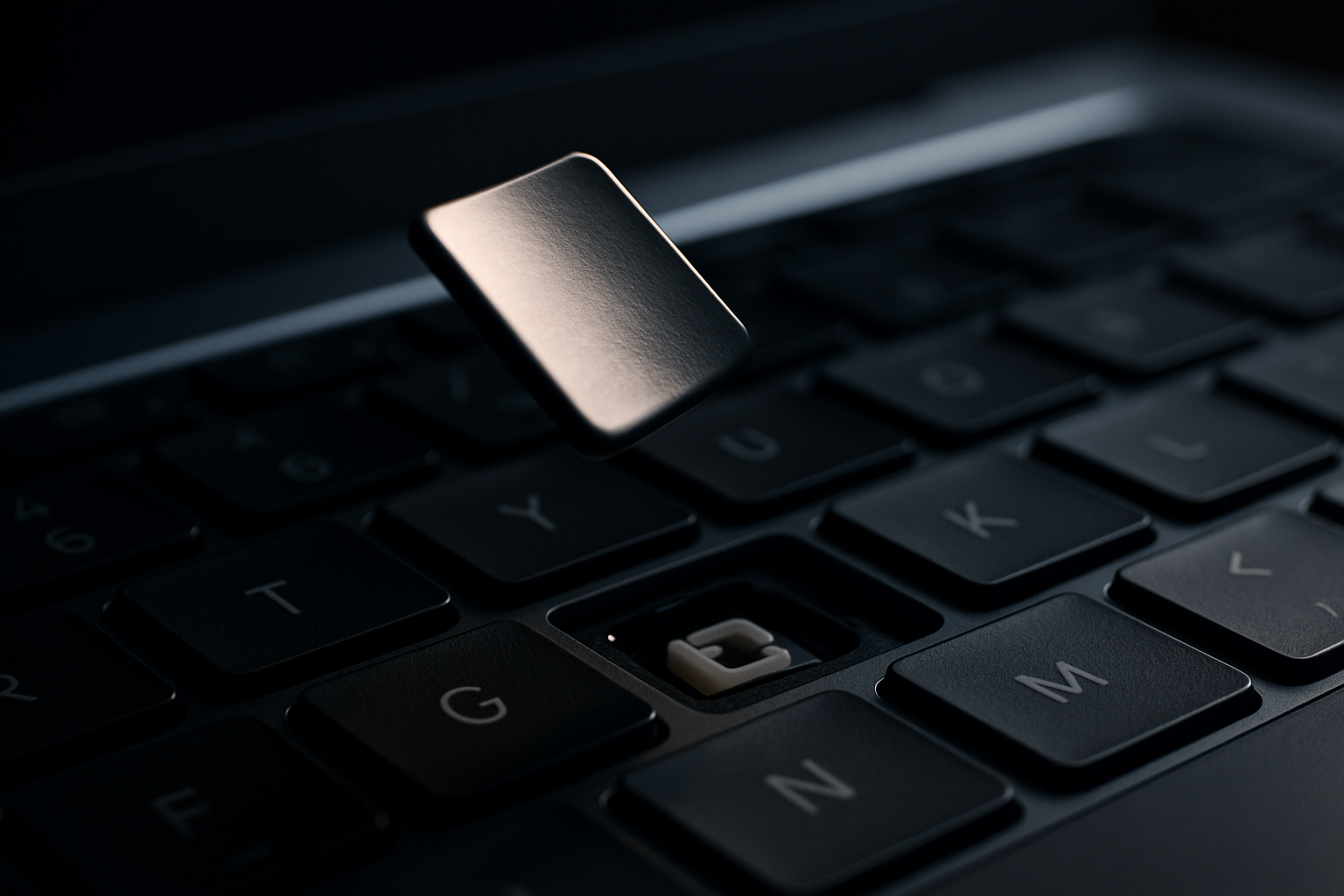
On the laptop chassis, look at the empty spacebar slot. You'll see two small chrome catches (one near each end) that the hooks on the metal bar will latch into. Those catches are what hold the bar in place once installed.
The install — sequence matters
The single biggest mistake is putting the keycap onto the clip first, then trying to drop the whole assembly onto the chassis. The metal bar will hit the keyboard surface before the catches and bend out of shape. Do it in this order instead:
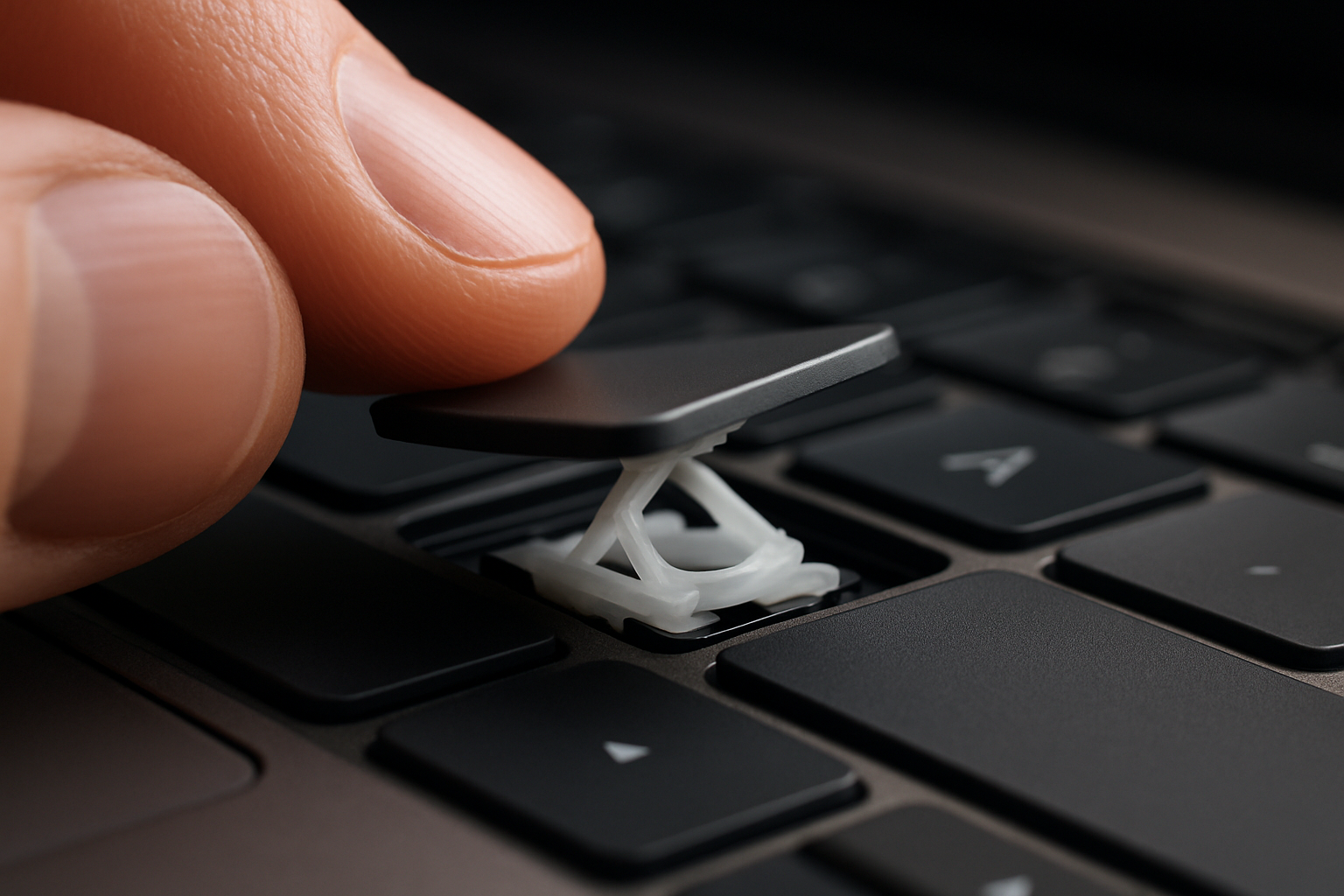
- Install the clip first. The white plastic retainer clip goes onto the chassis the same way as any other key — snap it into the four posts. Don't put the keycap on yet.
- Hook the metal bar into the chrome catches. Hold the spacebar upside down, slot each end of the metal bar into its catch on the chassis. The keycap should now be hanging upside down, attached only at the chrome catches.
- Pivot the spacebar down onto the clip. Keeping the metal bar hooked in place, rotate the spacebar down toward the keyboard. When it's flat over the clip, press down firmly in the center — you'll hear a soft click as the clip latches engage. Press near each end too to seat the corners.
- Test. Press the left end, the right end, and the center. Each should feel identical. If one corner feels mushy or sticks, the bar isn't fully seated — pop the cap back off and try again.
The common mistakes
- Bar installed backwards. The hooks must face up toward the keycap, not down toward the chassis. If you can see the hooks pointing into the laptop, the bar is upside-down.
- One end of the bar in the channel, the other end free. If you press down with one hook unhooked, you'll bend it. Confirm both ends are seated before you press the cap down.
- Forcing the cap down with the clip already pressed in. If the clip is fully seated but the cap won't go on, the clip is wrong-side up. Pull it back off and rotate 180 degrees.
If the bar gets bent
A slightly tweaked stabilizer bar can sometimes be straightened with fingers. A noticeably bent one (kinked, twisted) is done — it'll never sit flat in the channel again. The good news is every spacebar kit we sell includes a fresh bar.
Some models use two bars instead of one
A handful of older Lenovo ThinkPad and Dell Latitude designs use two short stabilizer bars instead of one long one, attached separately to the underside of the keycap. The principle is identical — hook the bar ends into the chassis catches before pressing the cap down. Just twice.
Ready to order?
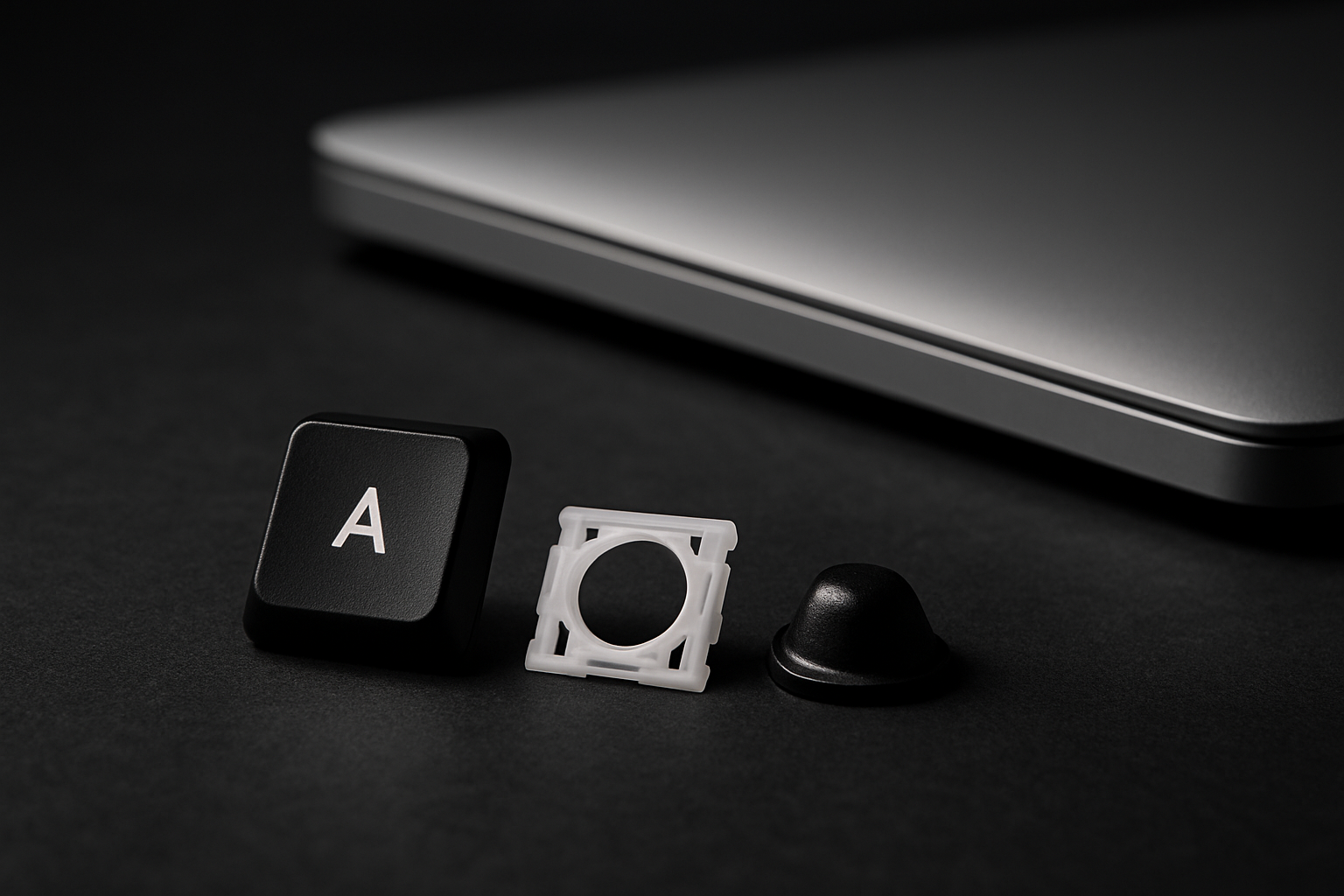
Search by your laptop model — every spacebar kit ships with the cap, the clip, the cup, and a fresh stabilizer bar. Not sure which kit you need? Email us a photo of the underside of your old spacebar and we'll confirm.